Google Forms is built for surveys and intake forms. When the goal is gathering uniform responses from a group and sending submissions into a spreadsheet, Forms handles that job cleanly.
For teachers setting homework between lessons, a form is rarely the right format. A worksheet is not a survey. Questions belong directly inside reading passages, exercises require cloze blanks or interactive sequencing, and written answers need feedback that students can read and discuss. Reparse provides an interactive document format for homework, combining automatic checks with rubric scoring and inline feedback threads.
Document layout versus form fields
In Google Forms, every item is a separate rectangular field stacked in a single vertical column. While Forms offers short-answer, paragraph, multiple-choice, and grid question types, it cannot integrate questions into the reading material itself.
A cloze exercise (fill-in-the-blank) cannot place an input inside a sentence. A teacher must present the sentence as a prompt block and create a detached input field underneath. Chronological or procedural ordering tasks have no native equivalent in Forms; teachers have to construct multiple-choice grids or numbered dropdown menus.
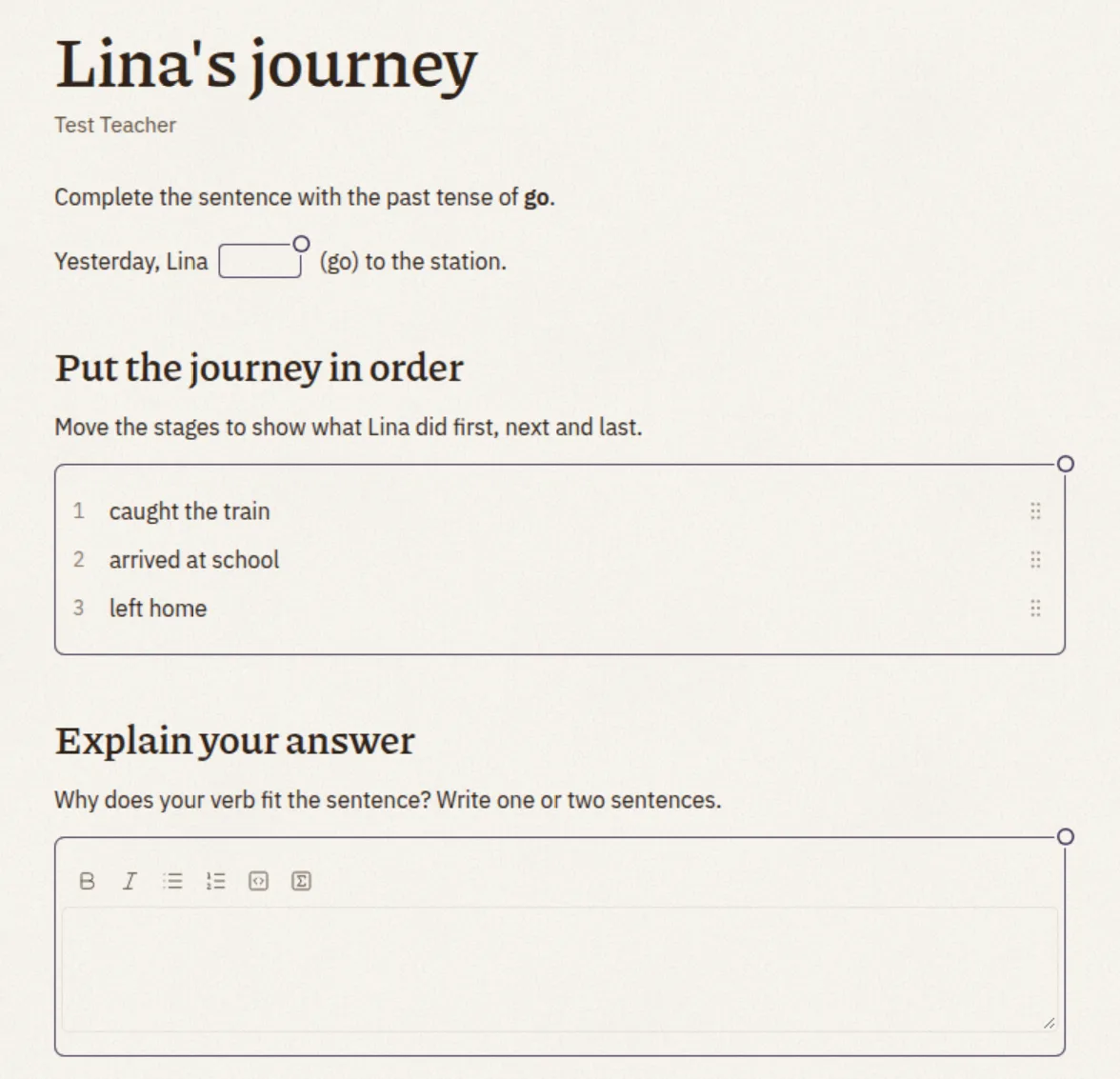
In Reparse, homework is authored as a continuous document. Blanks sit directly inside sentences where words belong. Ordering questions present draggable tiles that students arrange into correct sequence. Short-answer and essay questions sit alongside the text rather than in detached survey boxes.
This document model also supports custom interactive elements. Forms cannot run code: if a physics problem asks students to adjust gravity on a simulation before predicting drop times, or a language exercise uses an interactive crossword for vocabulary rehearsal, Forms must link out to external tools or embed static screenshots. Reparse can embed sandboxed interactive widgets right in the document, so students interact with the model and write their reasoning on the same page.
Student access and account barriers
How students access their work determines whether homework gets done or gets stuck behind login screens.
Google Forms allows public link sharing, but several essential quiz settings require Google authentication. Restricting submissions to one response per person requires student Google logins. Allowing students to upload files or supporting progress saving requires an active Google account. When students work on family tablets, mobile browsers without stored school logins, or devices that lack a Google session, these requirements cause access friction.
Reparse homework opens directly via a link in any browser on desktop or mobile without requiring a student account, password, or third-party login. Progress and submissions are authorized via a browser-stored guest key, so students can complete and submit work immediately.
Feedback delivery and student dialogue
Forms includes a Quiz mode that checks multiple-choice and short-answer questions against an answer key. It also supports manual point assignment and text feedback for paragraph questions.
However, delivering that feedback in Forms requires either collecting student email addresses to email scores, or manually releasing grades to authenticated Google accounts. Once delivered, the feedback is a static notification. If a teacher points out an error or asks a clarifying question, the student cannot reply on the form. Continued discussion must move to a separate email or message thread.
Reparse separates objective checks from teacher evaluation. Blanks and ordering questions validate instantly against configured keys. Written answers present teacher-defined rubrics (such as criteria for grammatical tense and irregular forms) alongside the student's text.
When a teacher returns marked work, feedback appears directly attached to the student's answers on the homework page. Students can reply to the teacher's note in place, keeping corrections and explanations attached to the original exercise.
Authoring and adapting exercises
Building assignments in Google Forms requires manual configuration through form menus: teachers click through menus to add fields, enter options, set point values, and write feedback. Creating tailored variations for different students requires duplicating forms and adjusting each field by hand.
Reparse supports direct Markdown editing with question IDs, as well as AI-assisted drafting through MCP connectors in Claude or ChatGPT (or copying prompts into any AI tool). Teachers describe the target exercise and rules; drafts appear as reviewable documents where any requested revision is tracked as an individual suggestion to accept or reject before publication. Because the connector supports custom elements, teachers can also prompt their chat to write custom interactive code, such as a runnable simulation or crossword, without hand-coding it themselves.
Choosing between Forms and Reparse
| Workflow capability | Google Forms | Reparse |
|---|---|---|
| Document structure | Stacked vertical form fields | Continuous interactive document |
| Inline question types | Inputs placed below prompt text | Cloze blanks inside sentences, draggable sequencing |
| Interactive code and simulations | Static screenshots or external links | Embedded sandboxed elements (simulations, manipulatives, crosswords) |
| Student access | Requires Google login for single submissions and uploads | Direct link access with browser-stored guest key |
| Written answer evaluation | Manual points with static email or account release | Rubric criteria displayed alongside student text |
| Student feedback dialogue | Static notification (requires email or chat for follow-up) | In-place threaded replies on the homework document |
| Authoring workflow | Manual field configuration and form clicking | Direct Markdown editing or AI-assisted drafting with tracked suggestions |
Google Forms remains the right choice when:
- The task is a standardized survey, intake form, or event registration.
- The entire workflow is built around aggregate data analysis in Google Sheets.
- The class operates in a Google Workspace domain where every student is already authenticated.
Reparse is the better fit when:
- Questions belong naturally inside reading passages, cloze sentences, or interactive ordering tasks.
- The assignment benefits from custom interactive elements, such as runnable simulations, crosswords, or visual manipulatives embedded directly on the page.
- Homework needs to open cleanly by link without requiring student logins.
- Review requires rubric scoring and a feedback thread where students can reply to comments directly on their work.